Menu
Components

Numeric input
Numeric inputs allow users to provide a number value using their keyboard. A unit can be displayed within the field where needed.
UX Owner: Jo Welling
UI Owner: Steven Roberts
Note: This component doesn't yet exist in Storybook, preliminary image(s) shown.
On this page
Example

When to use
Numeric inputs can be used where:
- You're asking a user for only a numeric value; and
- There are a wide (or infinite) range of possible values
When not to use
Numeric inputs should be avoided where:
- You need a user to enter non-numeric characters (use text input instead)
- there’s a small range of possible values or only a small range of value are likely to be selected (consider using radios instead)
Variants
Unit prefix
Prefixed units and symbols can be added to numeric inputs where needed. The prefixed unit is commonly (but not exclusively) used where we're asking for a monetary amount.

Unit suffix
Similarly, suffixed units and symbols can also be added to numeric inputs where needed. Suffixed units are commonly used where we're asking for measures like weights, heights and meter readings.

Unit prefix and suffix
The prefixed and suffixed units can also be used together. This can be particularly useful when asking about a frequent payment.

Anatomy
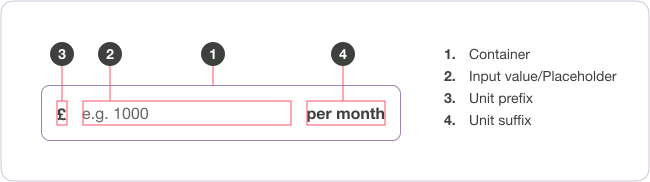
Numeric input layout
Numeric inputs usually span 100% of the width available. However, the width can also be set to a specific value where it helps us indicate that we’re only looking for a short answer from the user.

Allowed input characters
Unlike text inputs, numeric inputs don’t accept non numeric characters or symbols. The allowed input character set is the numbers 0–9 only.


Where decimal numbers are accepted values, the period (.) can also be added to the allowed character set.
Soft keyboard
Due to the limited character set, one of the ways we can make typing values into numeric inputs easy is by making use of the number keyboard on touch devices.
Examples

Further reading on number pad options
Despite looking simple, there’s actually quite a few different ways to invoke the number keyboard on different devices.
The key attributes to invoke the number keypad are “inputmode” and “pattern” depending on the device. If they’re new to you, it’s well worth having a read up on both to get a high level view of what’s happening in the background.
The following blog post provides a good overvew of the two attributes with plenty of examples:
Filament group: I Wanted To Type a Number
And this guide pretty much does what it says on the tin:
CSS Tricks: Everything you ever wanted to know about input mode
Number formatting
Some numbers, particularly long ones, are often formatted in a particular way to improve readability. This is usually done by adding spacing between the digits at certain intervals.
The most common examples are phone numbers and credit card numbers.
Where this is the case, consider adding the formatting to the numeric input. Having number formatting in place in our forms can ease the cognitive load on our users when scanning the form, which reduces the likelihood of users submitting incorrect details.
See the card number component for an example of how this can be achieved.
Input states
Empty
The empty state is used where no text has yet been entered into the input (either by the user or through any form of prefill).

Using placeholder text
Use placeholder text only where it supports users in providing a valid input. Generally, this should be in the form of an example input.

Complete
The completed state is used wherever the field is not empty i.e. a value has been entered into the input (either by the user or through any form of prefill).
The user input value is bolder and darker than the placeholder text used for the empty state, but the other style properties remain unchanged.

Interaction states
For general information and guidance about these states, see interaction states.
Hover
There is no hover style for numeric inputs. The cursor changes to the text select, which provides sufficient indication that the input is interactive.

Focus
When focus is applied to a text input an offset border is applied and the caret (text indicator) is displayed.

Disabled
When disabled, there are no hover or focus interactions and the numeric input can’t be interacted with. Both empty and complete inputs can be disabled. In both cases, the style is change to give the appearance of a 50% opacity.

Validation states
Error
Where numeric inputs are invalid, they use the same error state, irrespective of whether the validation is triggered due to an empty field or the field containing an invalid data format.
The border element is the only part of the field to change – the input value (or placeholder text) does not change.

As soon as a text input with the error validation state is focussed, the error state is removed.

Similar components
There are a range of components that resemble the numeric input, either visually or in their functionality
Where to find this component
Documentation version history
Last updated Monday, 21st June 2021 10:44 by Adrian T.